

NetApp Consoles for Red Hat OpenShift
Introduction
Welcome to the NetApp Consoles for Red Hat OpenShift, a suite of open-source projects designed to significantly improve how you interact NetApp storage within your Red Hat OpenShift environment. These native OpenShift consoles bring powerful storage and data management capabilities directly to your fingertips, simplifying complex tasks and accelerating your development and deployment workflows.
Why Use the NetApp Consoles?
Managing persistent storage for critical workload can be complex, especially in a containerized environment. Our consoles solve this by providing an intuitive graphical user interface (GUI) inside the OpenShift console, allowing you to:
- Accelerate Deployment: Quickly deploy Trident, NetApp's dynamic storage orchestrator for Kubernetes, and Trident Protect with just a few clicks.
- Simplify Storage Management: Effortlessly create and manage volumes, snapshots, and business continuity directly from the console. No more command-line gymnastics!
- Enable Dataset Management: Take control of your data, particularly for workloads running in OpenShift, OpenShift AI, and Developer Hub. This is perfect for data-intensive and AI/ML projects.
Consoles
We offer two powerful consoles to meet your storage management needs:
- netapp-openshift-console-trident This is your plugin for core Trident functionalities. It provides an intuitive GUI to:
- Manage volumes and snapshots.
- Create clones from snapshots.
- Import existing NetApp volumes to Red Hat OpenShift, even if not created with Trident
- Expose volumes to Red Hat OpenShift AI for advanced data engineering workflows
- netapp-openshift-console-protect This is your plugin for workload protection with Trident Protect. It provides a simplified GUI to:
- Create, schedule, and trigger on-demand application-aware local backups
- Create, schedule, and trigger on-demand application-aware remote backups
- Manage in-place restore
- Manage restore as a new workload
Getting Started
Both projects are currently in a pre-release phase.
Prerequisites
- Red Hat OpenShift Container Platform from 4.14 to 4.21.
Prerequisites
- Red Hat OpenShift 4.[15,16,17,18,19,20.21] on any footprint
- NetApp storage solutions
- on-prem NetApp appliances with ONTAP
- Any CVO flavors from AWS, Azure, Google
- AWS FSxN
- Azure NetApp Files
- Helm 3
Install/Uninstall
Helm Repository
Add the Helm repository:
helm repo add innovation-labs https://netapp.github.io/Innovation-Labs/If you have already the repository in your collection, skip this step and update it:
helm repo updateCheck the repository content:
helm search repo innovation-labsExpected output:
NAME                                                    CHART VERSION   APP VERSION     DESCRIPTION
innovation-labs/netapp-connector                        26.2.2          3.2.4           NetApp Neo v3.x for Microsoft 365 Copilot Conne...
innovation-labs/netapp-openshift-console-protect        26.2.1          26.2.1          NetApp Protect Console Plug-in for Red Hat Open...
innovation-labs/netapp-openshift-console-trident        26.2.1          26.2.1          NetApp Trident Console Plugin for Red Hat OpenS...
Install the NetApp Trident Console Plugin for Red Hat OpenShift
Run the Helm install command:
helm install netapp-openshift-console-trident innovation-labs/netapp-openshift-console-trident --namespace netapp-openshift-console-trident --create-namespaceIMPORTANT
The namespace should not be change as it is linked to the Red Hat OpenShift Console manifest. If for any reasons, you wish to deploy in a different namespace, please reach out to the team.
Install the NetApp Protect Console Plugin for Red Hat OpenShift
Run the Helm install command:
helm install netapp-openshift-console-protect innovation-labs/netapp-openshift-console-protect --namespace netapp-openshift-console-protect --create-namespaceIMPORTANT
The namespace should not be change as it is linked to the Red Hat OpenShift Console manifest. If for any reasons, you wish to deploy in a different namespace, please reach out to the team.
Enable a plugin
Console Plugins are disabled by default. To enable them after installation, follow these steps:
Go in Administration\Cluster Settings and search for Console then click on the one related to operator.openshift.io.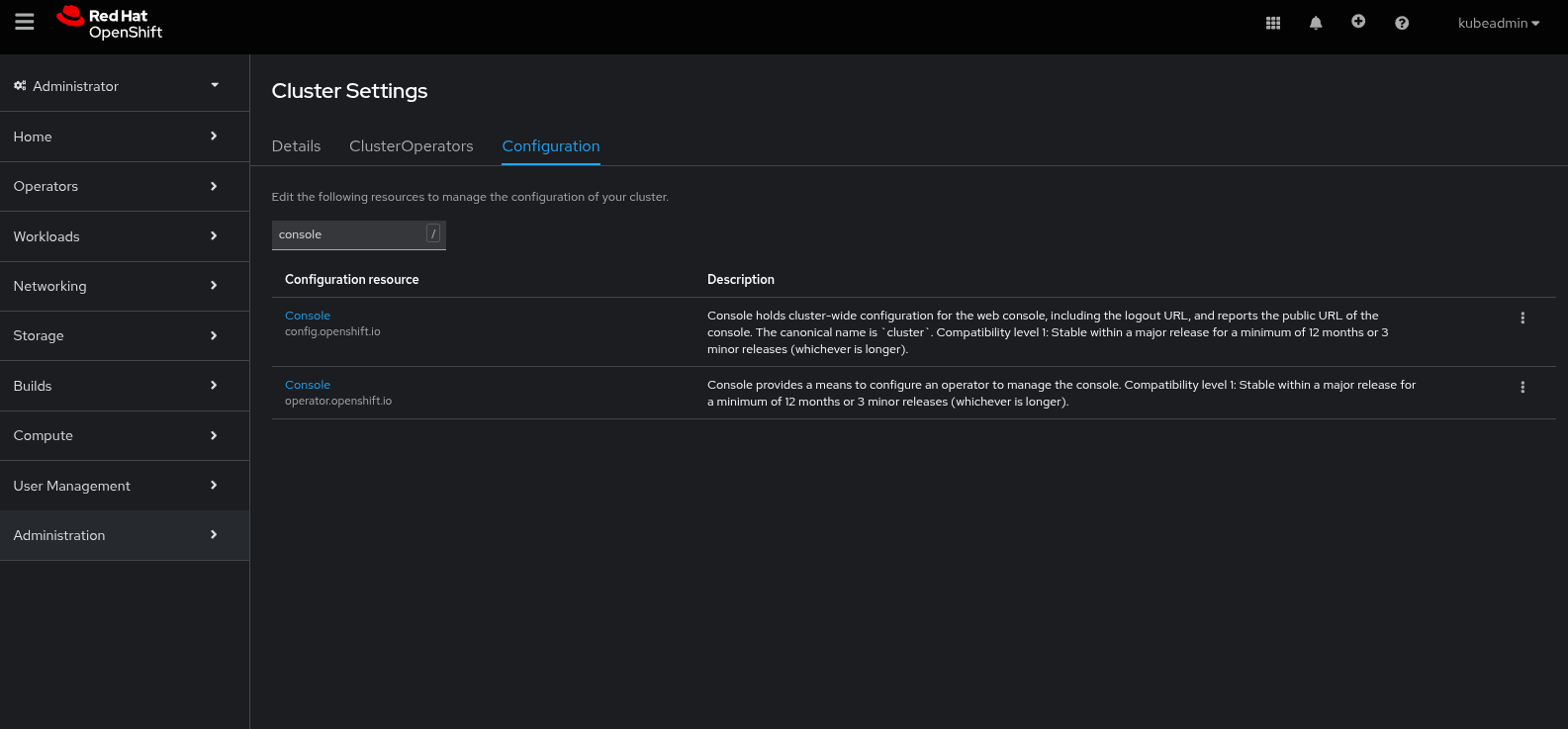
Click on the tab Console Plugins to display the existing list of plugins. The plugin should appear in the list as "Disabled" if the deployment with Helm was successfuly.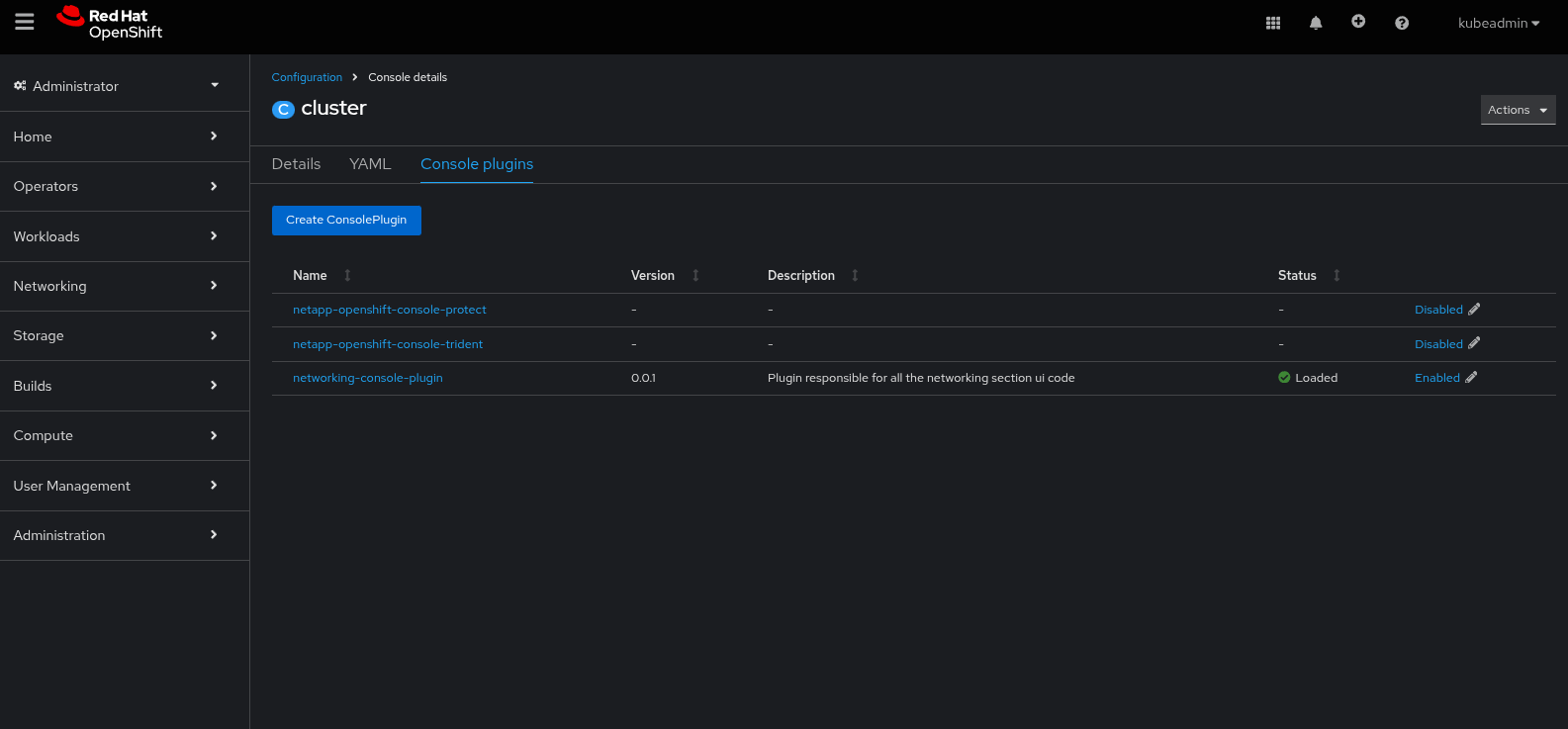
Click on Disabled to open the Console plugin Enablement window and change it to Enable then Save.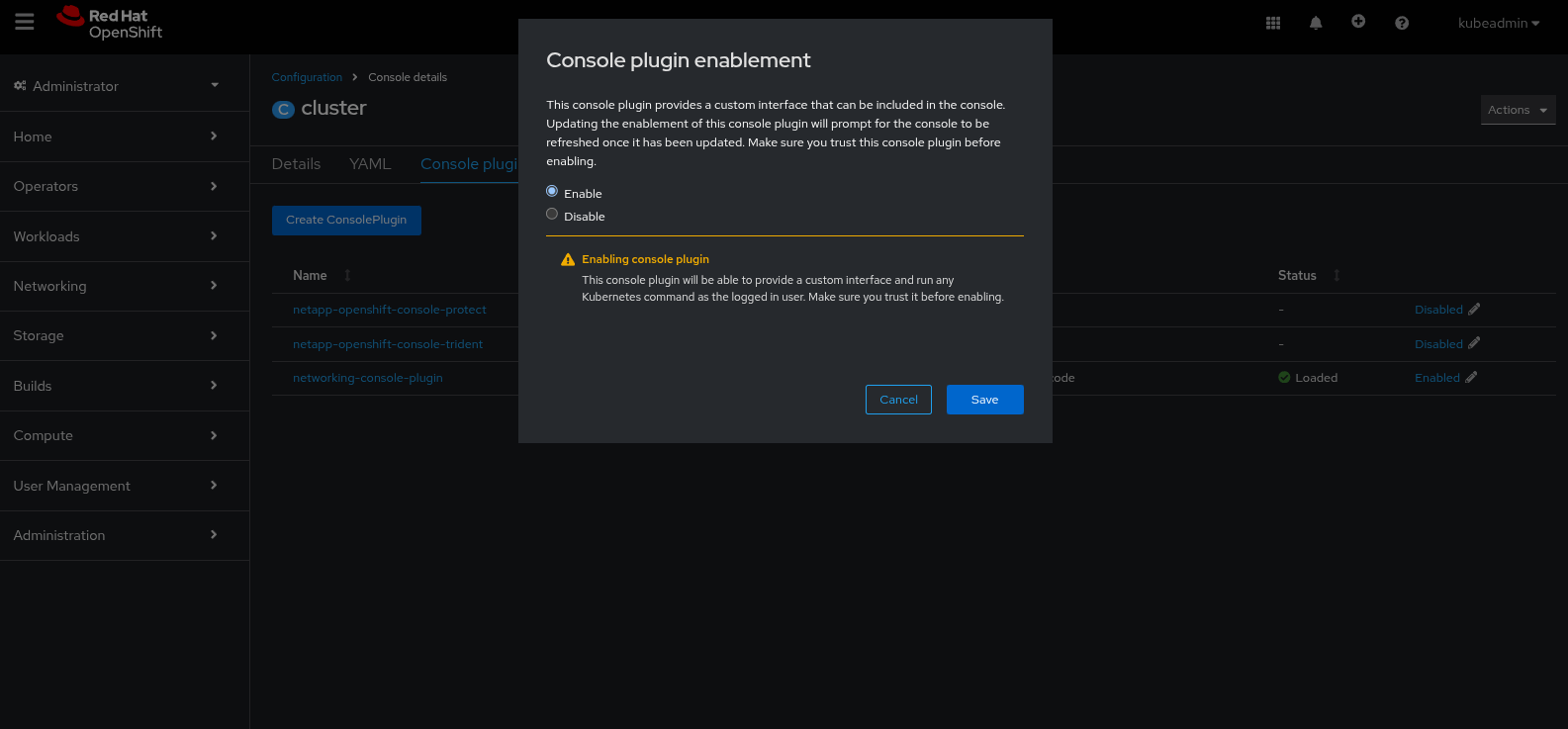
After a couple of minutes, a notification should invite you to refresh the console, click on Refresh web console.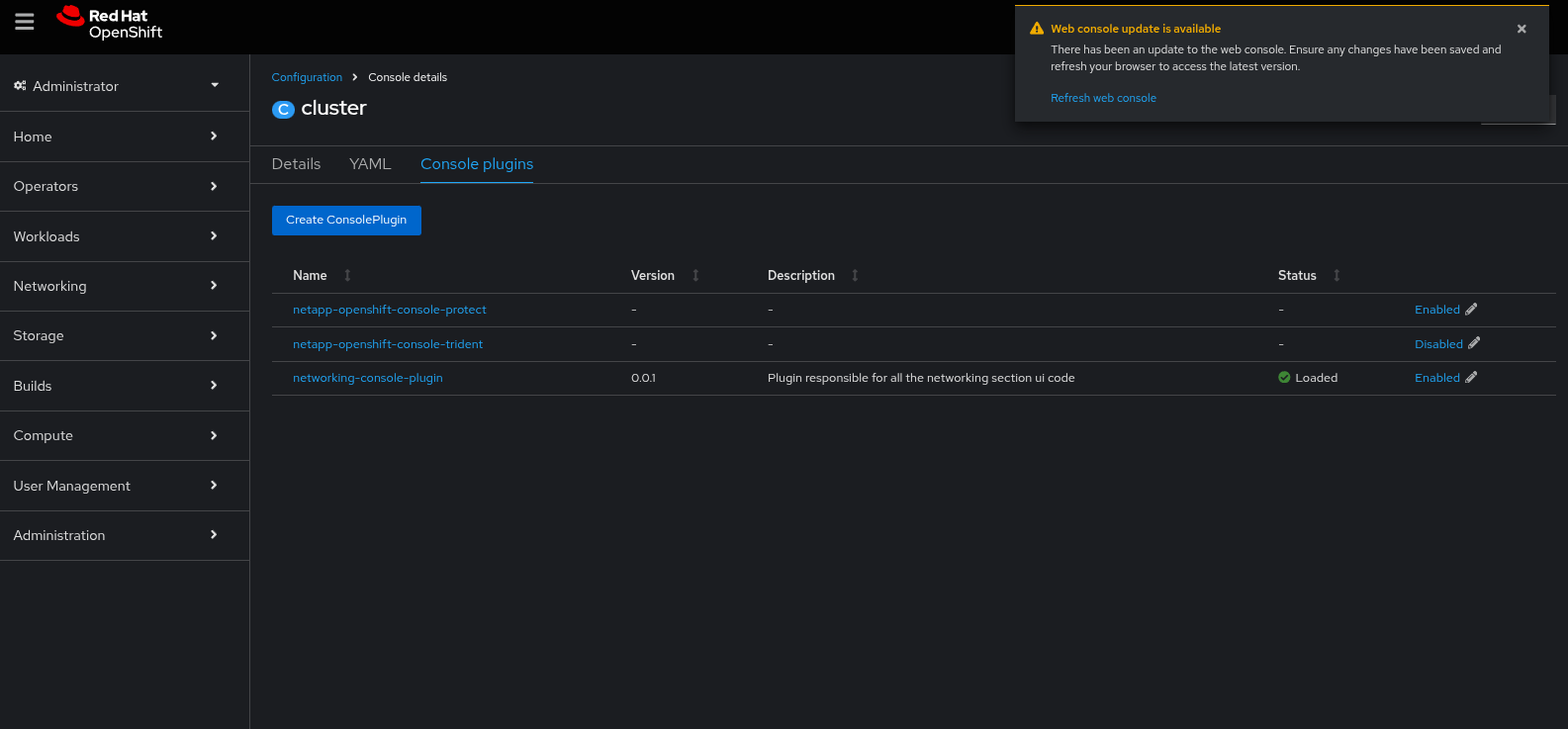
After refreshing the web console, the Description should have been populated and the new NetApp Protect Console is now appearing in the menu item list ready to be used.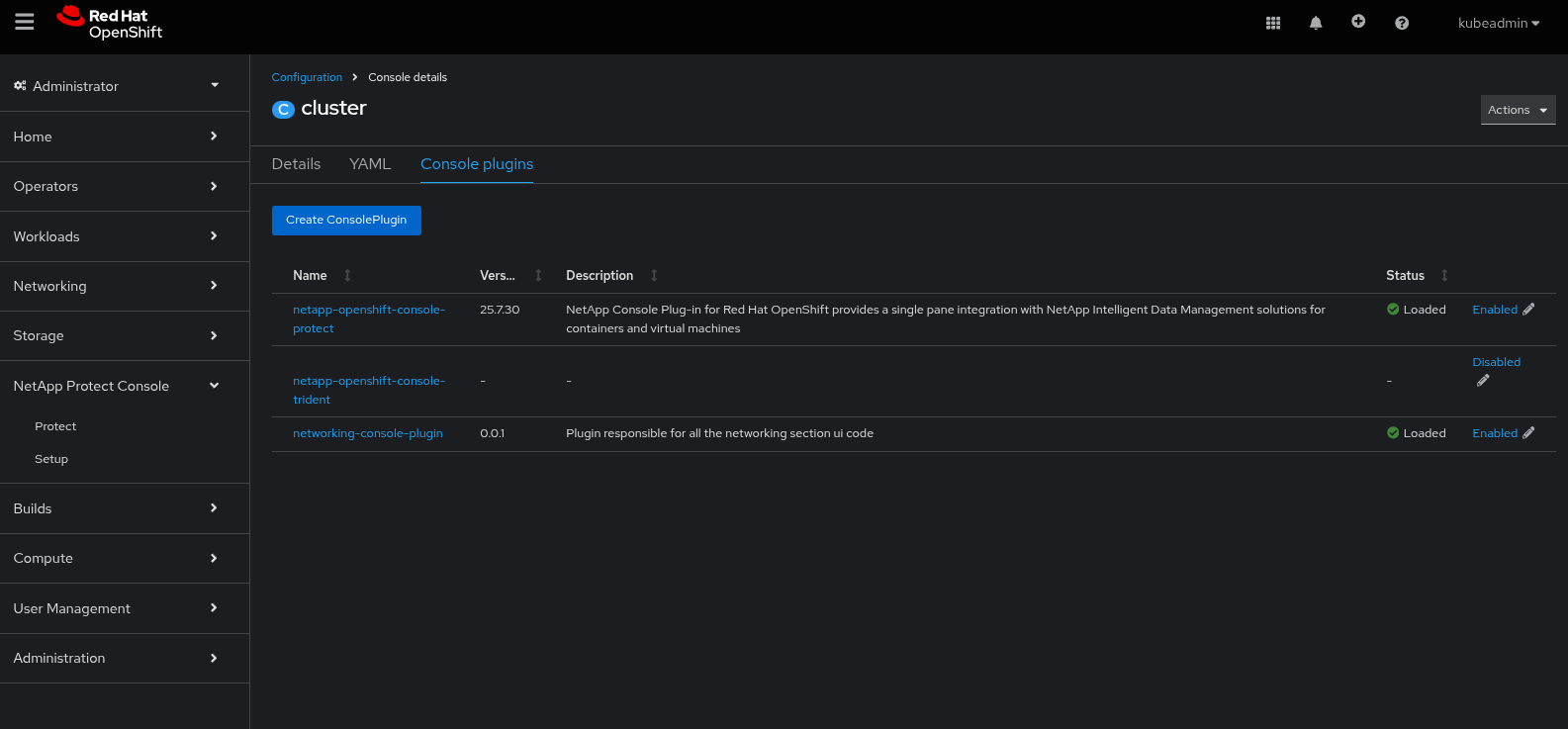
Uninstall a plugin
First disable the plugin as following the same steps as for enabling it.
Then, if the plugin was deployed as per this document, run the following:
helm uninstall netapp-openshift-console-trident -n netapp-openshift-console-tridentExpected output:
release "netapp-openshift-console-trident" uninstalled