Microsoft 365 Copilot
Architecture
In Neo v4, Microsoft Graph integration is handled by the Worker service, which manages Graph connection creation, item uploads, ACL synchronization, and cleanup. The API service provides endpoints for configuring Graph credentials and monitoring sync status.
Configuring Graph Credentials
Graph credentials can be configured in two ways:
Environment variables: Set
MS_GRAPH_CLIENT_ID,MS_GRAPH_CLIENT_SECRET, andMS_GRAPH_TENANT_IDin the Worker and API service environment.Setup API: Configure credentials at runtime via:
POST /api/v1/setup/graphThis is useful for initial setup or rotating credentials without restarting services.
Register Neo as a connector in Azure Entra
In order for Neo to be able to securely communicate with M365 Copilot.
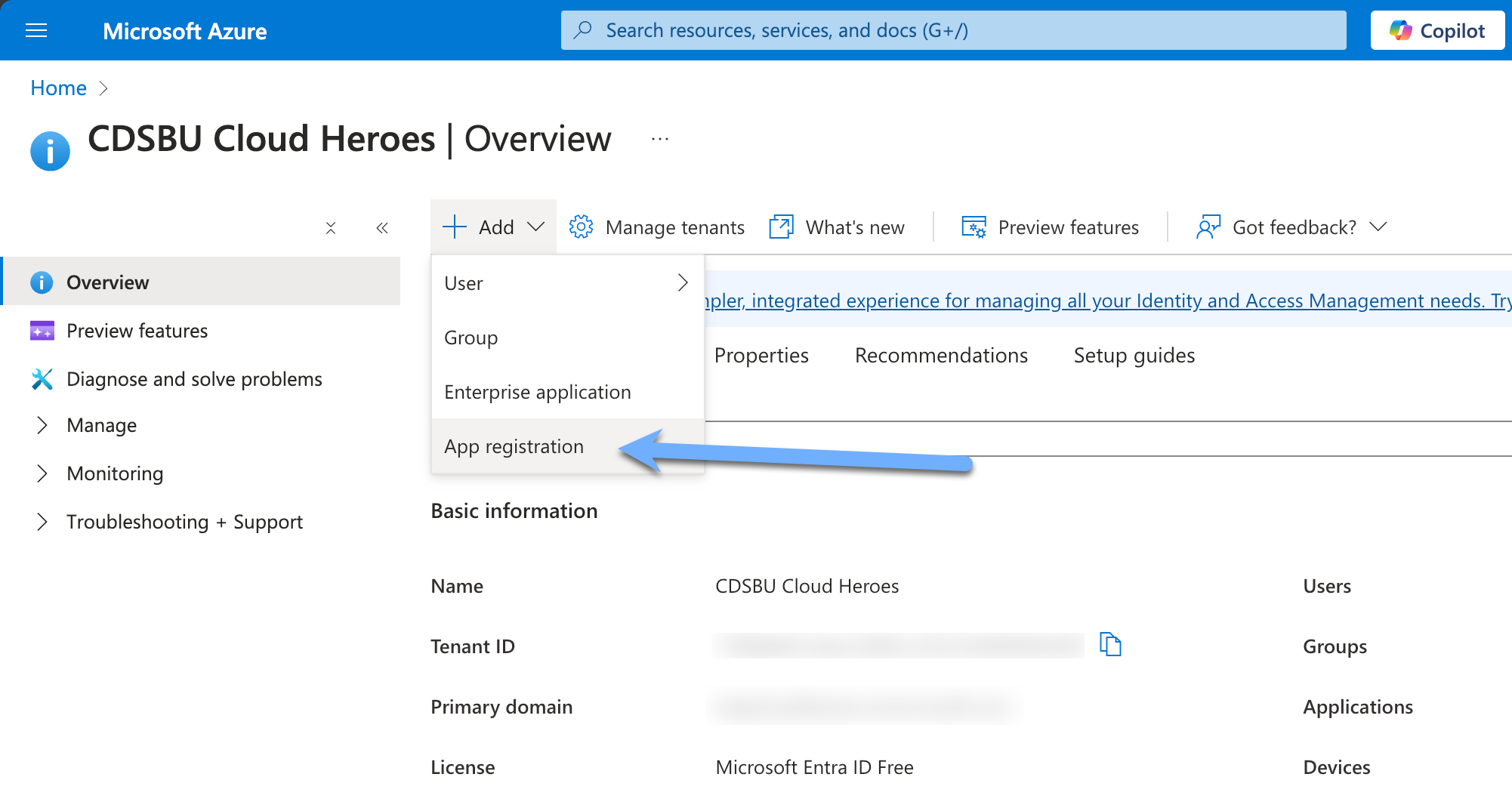
- Navigate to the Azure Entra portal and select "Add" and select the "App Registration" option.
- Fill in the required fields and click "Register". (No Redirect URI is required)
- Copy the Application (client) ID and Directory (tenant) ID from the Overview page.
- Navigate to the "API permissions" page and select "Add a permission".
- Select "Microsoft Graph" and then "Application permissions".
- Search for "ExternalConnection.ReadWrite.OwnedBy" and select the checkbox.
- Search for "ExternalItem.ReadWrite.OwnedBy" and select the checkbox.
- Search for "User.Read" and select the checkbox.
- Search for "User.Read.All" and select the checkbox.
- Search for "Group.Read.All" and select the checkbox
- Click "Add permissions".
- Click "Graph admin consent for (tenant)" and click "Yes".
- Navigate to the "Certificates & secrets" page and click "New client secret".
- Fill in the required fields and click "Add".
- Copy the value of the client secret.
You have successfully registered Neo as a connector in Azure ENTRA. You will need the Application ID, Directory ID, and Client Secret for the next steps.
Graph Sync Monitoring
Neo provides API endpoints for monitoring and managing the Graph sync lifecycle for each share.
Check sync status
GET /shares/{share_id}/graph/statusReturns the current Graph sync state for a share, including connection status, items uploaded, items pending, and any errors.
Backfill items to Graph
POST /shares/{share_id}/graph/backfillTriggers a backfill operation to upload any items that have been extracted but not yet synced to Microsoft Graph. Useful after initial setup or after resolving Graph connectivity issues.
Clean up Graph items
POST /shares/{share_id}/graph/cleanupRemoves items from the Microsoft Graph connection that no longer exist in the source share. This is automatically performed during crawl operations but can be triggered manually.
Retry failed uploads
POST /shares/{share_id}/graph/retry-failedRetries all items that previously failed to upload to Microsoft Graph. Failed items are tracked in the database with error details for diagnostics.
Managing the connector in M365 Admin Centre
Connectors can be managed via the M365 Admin Centre. This includes viewing connector status, managing data sources, and monitoring ingestion progress.
- Navigate to the Microsoft 365 Admin Centre.
- Select "Settings" and then "Microsoft 365 Copilot".
- Select "Connectors" from the left-hand menu.
- Here you can view all registered connectors, their status, and manage their settings.
Microsoft 365 Admin Centre: Copilot Connectors
Check item level permissions
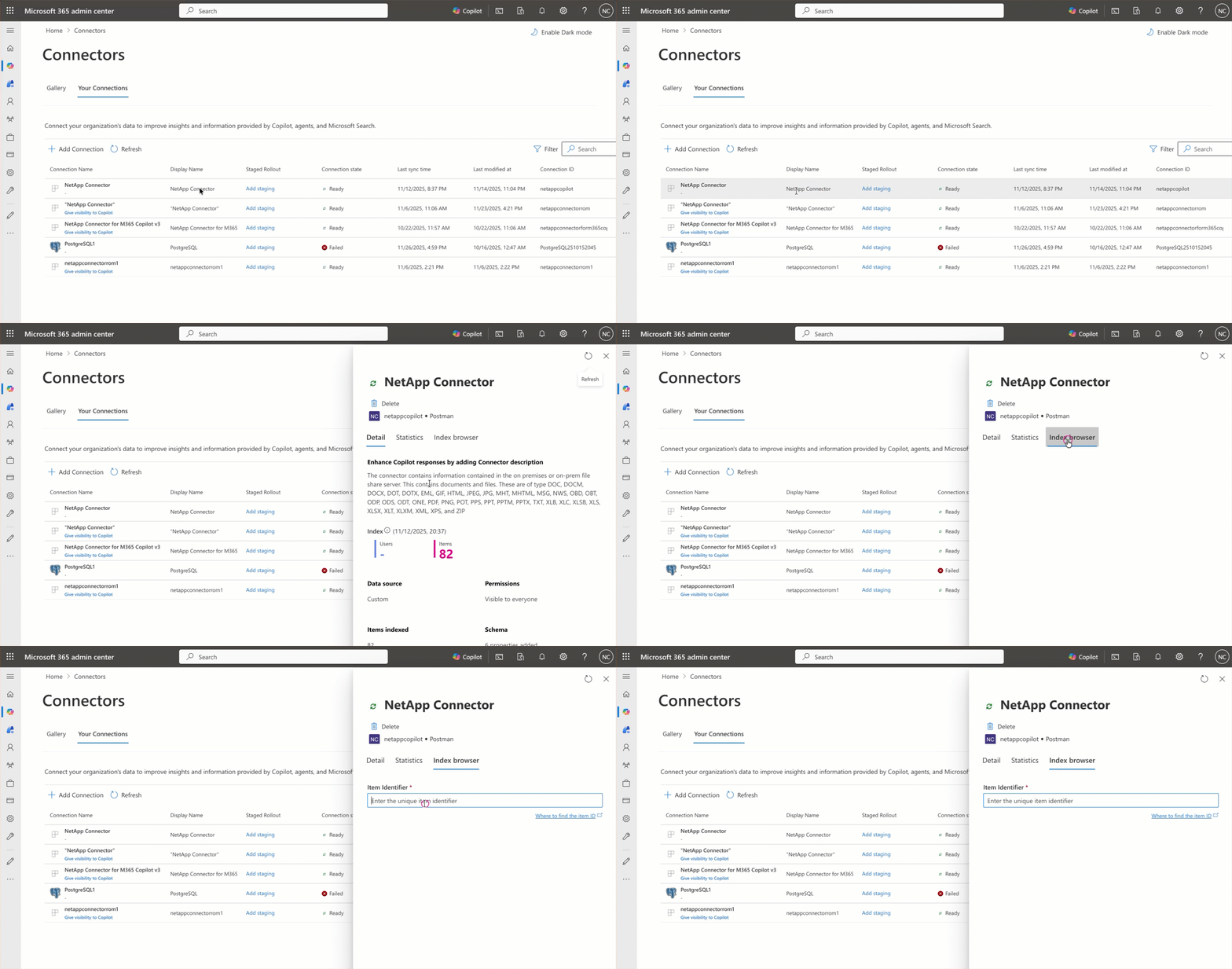
You can validate the item level permissions that the connector has in M365 via the Index Browser within the M365 Admin Centre as shown below:
Securing access to results
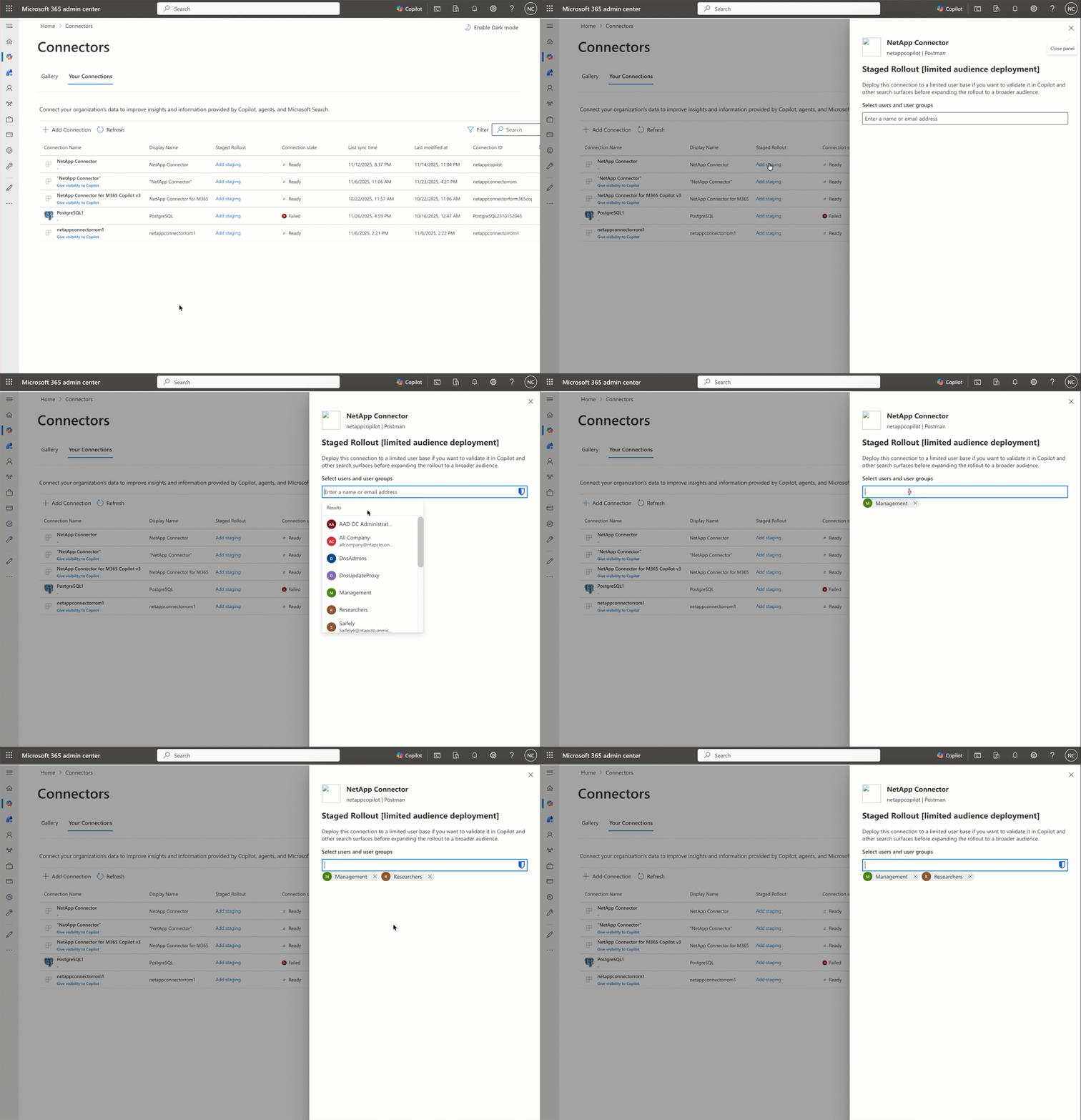
You can control access to the ingested data via Microsoft 365 Copilot by configuring the appropriate permissions in M365. This includes setting up role-based access control (RBAC) and ensuring that only authorized users can access the data ingested by the connector.
Removing a connector
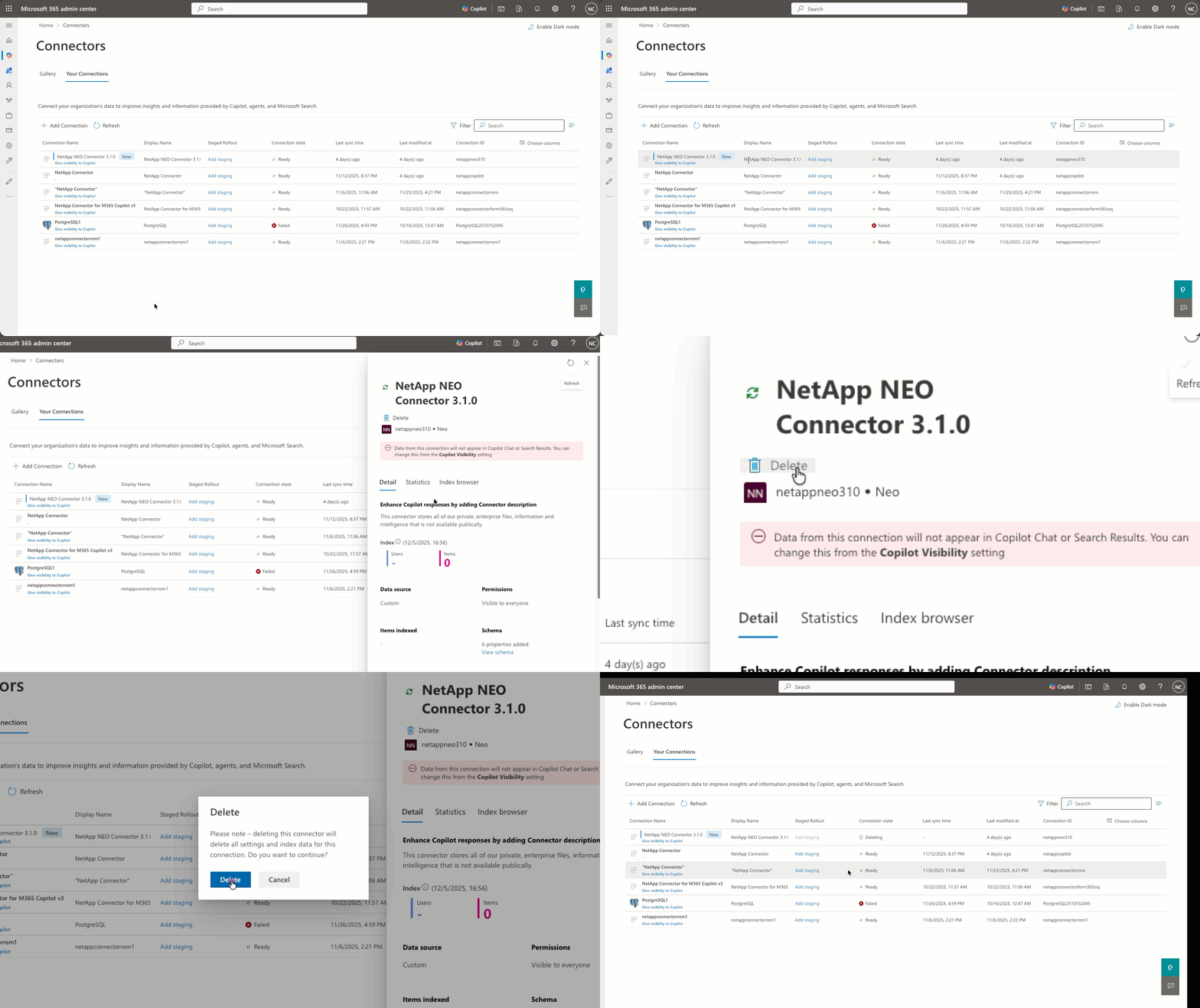
You can easily remove a connector and all of its indexed content from Microsoft 365 Copilot via the M365 Admin Centre as shown below: